AI for Data Analysis in Student Accounts: Where to Start

This is Lesson 2 of The Student Accounts AI Field Guide Series, a companion learning series alongside the State of AI in Student Accounts report.
You've probably heard someone say, "just do a VLOOKUP" as if that explains everything. If your eyes glazed over the first time, or you had to dig into the recesses of your mind (or a colleague's) to remember the formula, you're not alone.
For years, data work in student accounts has required a working knowledge of spreadsheet formulas, database logic, and sometimes a very high tolerance for trial and error. Some of that work is genuinely interesting. A lot of it is tedious, time-consuming, and easy to get wrong in ways that aren't obvious until something downstream breaks.
AI changes this. Not by making you a data analyst overnight, but by acting as a sort of analytics thought partner to help you work through what you need, often in plain English. You can use AI to read your spreadsheet, understand what you're trying to figure out, and either do the work for you or tell you exactly how to do it yourself.
This lesson covers what you need to know to start using AI for data analysis in student accounts, beginning with one of the most common and most fickle tasks in the field.
First: What Is a VLOOKUP, and why is it helpful?
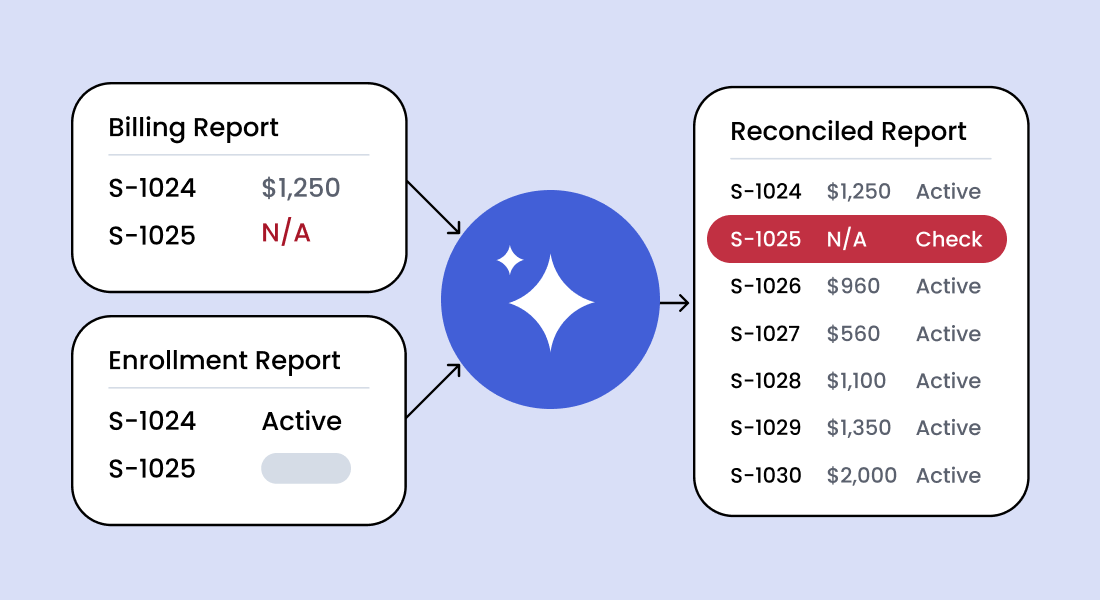
VLOOKUP is a spreadsheet formula available in Excel, Google Sheets, and similar tools that lets you pull information from one table into another by matching on a shared identifier (in many cases, a student ID).
Here's the everyday version: you have a list of students with outstanding balances, and you have a separate list of students enrolled in a payment plan. You want to know which students on the past-due list are already on a payment plan, because you'd handle them differently. A VLOOKUP finds the matches for you. It looks up each student ID in the first list, searches for it in the second list, and pulls back a value (like "yes, on plan" or the plan type) when it finds a match.
The formula looks something like this:
=VLOOKUP(A2, PaymentPlanTable, 2, FALSE)
Translated: “Take the value in cell A2. Look for it in the first column of PaymentPlanTable. When you find an exact match, return the value from the second column of that same row. If there's no exact match, return an error (#N/A).”
Simple enough in concept. When it works, it saves you a ton of manual work. In practice, it breaks constantly. Common failure points include:
- Extra spaces in student IDs that prevent exact matches ("12345 " vs. "12345")
- Mismatched formats between files (one sheet stores IDs as numbers, the other as text)
- The lookup column not being the leftmost column in the table — a VLOOKUP quirk that has frustrated generations of spreadsheet users
- Deleted rows that shift column positions, silently corrupting your formula
For years, the answer to every one of these every day problems was: try to Google it, ask a busy colleague to take a look, mess with the formula a little bit, maybe break something else. With AI, there's a faster path.
Three ways AI can help with data
You don't need to become a formula expert to get great results with AI. Across the board, you don't need to be technically fluent to get real value out of these tools — one of the strongest cases for how AI democratizes access to information and skill-building. But that's a topic for another post.
You need to, however, describe your situation clearly and let AI do the work.
Here are the patterns that come up most often in student accounts data work.
Scenario 1: Getting foolproof VLOOKUP steps from AI
What you're doing: you exported a payout report from your payment processor and a student account ledger from your SIS. You want one unified view so you can spot discrepancies, students whose payments haven't posted, and accounts that may have been credited twice.
Weak prompts:
"How do I combine two spreadsheets?"
"How do I do a VLOOKUP?"
Why they fail: AI doesn't know what your data looks like, what column you're matching on, or what outcome you're looking for. It will give you a generic tutorial. In the second example, a good AI tool will likely ask you clarifying questions before it proceeds, and you could eventually get there, but a strong upfront prompt gets you there faster and with less back-and-forth.
Strong prompt:
"I have two exports in one Excel workbook I need to reconcile. Tab 1 is named 'Sample Meadow Payout Report' with columns in this order: Column A is Student ID, Column B is Name, Column C is Transaction Amount, Column D is Fees, Column E is Net Amount, Column F is Type, Column G is Transaction Method, Column H is Transaction Details, Column I is Product, Column J is Initiated, Column K is Transaction ID. Tab 2 is named 'SIS Report' and contains Student ID in Column A, Payment Received (SIS) in Column I, and Account Status in Column K. Before writing any formulas, tell me how to confirm which column my Student ID is actually in, since columns don't always paste into Excel in the expected order. I want to add Payment Received (SIS) and Account Status from Tab 2 into Tab 1, matched by Student ID. Students with no SIS match should show 'Not in SIS.' Also add a Discrepancy column that flags differences between the Meadow Net Amount and the SIS payment. Walk me through step by step and flag common errors."
What you'll get back is a step-by-step walkthrough using VLOOKUP, written for your exact scenario. Try it for yourself with this sample file — a workbook with both reports already combined into two tabs. All data is fabricated. You'll be prompted to make a copy before editing.
Scenario 2: Uploading files directly and asking AI to do the analysis
This is where things get genuinely powerful. Claude, ChatGPT (with data analysis enabled), Google Gemini, Microsoft Copilot, and similar tools can accept spreadsheet uploads directly. Instead of asking AI to teach you a formula, you hand it the file and ask it to do the work.
How this works in practice:
Upload your file and use a prompt like this one, which mirrors the VLOOKUP scenario above (use the same workbook linked above to try it):
"I have a workbook with two tabs. Tab 1 is named 'Sample Meadow Payout Report' and Tab 2 is named 'SIS Report.' Both tabs share a Student ID column. Match them by Student ID and show me a combined view with the processor's Net Amount and the SIS's Payment Received side by side. Flag any students where those two amounts don't match, where a student appears in Tab 1 but not Tab 2, or where the SIS shows a credit balance. Summarize how many students fall into each category."
You get an answer in seconds and can (happily) put that pesky VLOOKUP formula aside. Or, as some of us like to do on the Meadow team, you can have AI run the data, then also provide the formula to double-check it for yourself in your file.
A few things to know before you upload:
- Never upload a file with real student data. If your school has an enterprise data plan, cleaning data may not be necessary or they will have specific guidance around what needs to be removed. Be sure to check with your data, IT, or legal team on appropriate usage and what information shouldn’t be shared. But generally, personally identifiable information like names, SSNs, email addresses, physical address, should be removed or anonymized before anything goes into an AI tool. Use anonymized exports or create a test dataset.
- Most AI tools have file size limits. Very large exports (tens of thousands of rows) may need to be split or summarized before uploading. The mechanics here will be covered in another lesson, but LLMs can also be directed to write a script using Python that will not run up against size limits, and output the data into a new file.
- Verify the output. AI can make calculation errors, especially on large or messy datasets. Spot-check the numbers before you share them. Looking at just two or three should give you the confidence you need.
Scenario 3: Cleaning Messy Data Before You Can Use It
This is the invisible tax on every data project in student accounts. Before you can analyze anything, you spend 40% of your time fixing it: removing duplicates, standardizing formats, correcting ID mismatches, handling blank cells.
AI is exceptionally good at this — both at writing formulas to clean data and at doing it directly on an uploaded file.
Scenario: your financial aid office sends you a list of students whose aid status changed. The student IDs in their file use a different format than your SIS (they include a leading zero that yours drops, or vice versa). None of your VLOOKUPs will work until that's fixed.
Prompt:
"I have a workbook with two tabs. Tab 1 is named 'Processor Export' and contains student IDs stored as plain numbers with no leading zeros, for example 5466889. Tab 2 is named 'Financial Aid Export' and contains student IDs stored as zero-padded 8-digit numbers, for example 05466889. These IDs represent the same students but won't match because of the formatting difference. Give me the Excel formula to standardize the IDs in Tab 1 so they match Tab 2, and explain what it does so I can verify it's working correctly."
By addressing the data mismatch, you can proceed with a VLOOKUP prompt as you would do in scenario 1, or if you are uploading files, you can combine this prompt with the type of prompt found in scenario 2.
Try it out here with this sample file of anonymized data.
Prompt for direct file cleanup:
"I've uploaded a spreadsheet of student account data. Before I analyze it, I need you to: (1) identify any duplicate Student IDs, (2) flag rows where the Balance column is blank, and (3) note any Student IDs that appear to be formatted differently from the rest, for example missing a prefix, using lowercase, or containing extra spaces. Summarize what yfou find."
Try it out here with this sample file of anonymized data.
Often, data clean-up needs will naturally emerge when you perform data tasks that are not returning the results you would expect. Pro tip: layer in some best prompting practices around flagging or asking AI to evaluate data hygiene or ask any clarifying questions before executing the prompt. See lesson 1 on prompting for more guidance.
What AI is not good at here (and what to watch for)
Using AI for data analysis is genuinely useful, but like all things AI, it is not foolproof. Here's where to stay alert:
It can hallucinate formulas. AI will occasionally give you a formula that looks right and produces wrong results. Always test on a small sample before running it across your full dataset.
It works best when you describe your data structure clearly. The more you tell it about your columns, your data types, and what a "correct" result looks like, the better the output will be. Vague prompts produce vague help.
It doesn't know your SIS. AI can help you work with data once you've exported it. It can't log into Ellucian, Workday, or any other system on your behalf or know the quirks of how your specific instance formats exports. That institutional knowledge still lives with you.
It can't catch what it doesn't know to look for. If a student's account has a nuance that wouldn't be visible in a column header like an internal flag, a pending appeal, a known dispute, AI won't flag it. Data analysis with AI should support your judgment, not replace it.
Starting points for your office
You don't need a complex dataset to start. Here are three low-stakes ways to build your confidence with AI-assisted data work:
- Pull your next routine report and ask AI to summarize it. Even if you already know the numbers, practice the prompt. Get comfortable with how AI reads your exports. In fact, it’s great if this is info you have because it makes it easy for you to check and build confidence or think of how to tweak.
- The next time a VLOOKUP gives you a #N/A error, ask AI to diagnose it. Paste in a sample of your data (anonymized), describe the error, and ask what's wrong. It will almost always find the cause faster than you would.
- Ask AI to write you a data cleaning checklist for your most common export. Tell it what your SIS produces, what columns you typically work with, and what errors show up. It will generate a repeatable QA process you can use every time.
Common use cases for AI data support in student accounts
Once you're comfortable with the basics, here are the kinds of questions AI can help you answer with the data you're already pulling. Keep an eye out for future lessons that dive into these specific use cases and prompts you can use with reports from student information systems like Jenzabar, Banner, Workday, and more. AI can help you answer questions like:
- For students on payment plans who are past due, exactly how much is past due?
- How are we doing in terms of collecting A/R for certain cohorts of students (for example, freshmen, online students, or students at a particular campus)?
- For students with outstanding balances who are not on payment plans, which accounts may need follow-up?
- For students with balances above a certain threshold, which ones are not covered by expected aid or a payment plan?
- Based on current payment plan activity, how much should we expect to collect at each upcoming payment date?
- For students who may need a registration hold, which records still need manual review before action is taken?
The analyst you already have
The barrier to data work in student accounts has never really been capability. It's been time, tooling, and the steep learning curve of spreadsheet formulas that weren't designed with your use case in mind.
AI lowers that barrier significantly. The practitioners who are getting the most out of it aren't analysts, they're people who know their data, know their students, and have learned to describe both clearly enough for AI to help.
That's a skill you already have. You're just applying it in a new direction.
This is The Student Accounts AI Field Guide Series, a companion learning series alongside our State of AI in Student Accounts report. Each lesson covers a practical topic grounded in real data from the field. Sign up to receive the full series in your inbox.
Meadow's research for this series is drawn from the State of AI in Student Accounts report, based on a survey of 147 student accounts, billing, collections, and One Stop professionals conducted in March 2026. Download the full report here.
